Posts

2021: Week 49 Departmental December Human Resources

Image
 Created by: Carl Allchin This week's challenge continues Departmental December. Human Resources data is often required in lots of different formats depending on the questions being asked of it. The output from this week is a summarised data set used for analysis. Input This data set is about Chin & Beard Suds Co. dedicated sales team. They have helped establish some of our wholesale clients so we want to understand more about their tenure with us and the actual cost we have spent on them (salary plus bonus).  One csv file with four columns . Requirements Input data Create the Employment Range field which captures the employees full tenure at the company in the MMM yyyy to MMM yyyy format.  Work out for each year employed per person: Number of months they worked Their salary they will have received  Their sales total for the year For each Reporting Year (the individual year someone worked for us), calculate their cumulative months (called Tenure) Determine the b...

2021: Week 48 - Solution

Image
Solution by Tom Prowse and you can download the workflow here.  This was the first challenge in our 'Departmental December' month where we are going to focus on a different business department - starting with Finance! The challenge had a 'nicely' formatted spreadsheet and we wanted to compare the different sales for each of our branches across different years. This input may look nice on a spreadsheet, however when we input this into Tableau Prep it doesn't look so nice. Step 1 - Branch Sales The first step is to bring in our input and then combine each of the different tables for each of the branches. When initially bringing this into Tableau Prep, all the tables are onto top of each other and aren't easy to work with, so to overcome this we need to use the 'Data Interpreter'. Using the Data Interpreter, Tableau Prep automatically identifies each of the three tables, and creates a separate input for each of them.  Each of these inputs are a different B...

2021: Week 48 Departmental December - Finance

Image
 Created by: Carl Allchin This December we wanted to challenge you to take on some tricky challenges that each week will focus on a different department in your organisation. We're starting with Finance. Finance uses a lot of data to understand the cash flow and liquidity of your organisation. They also typically have some really useful data locked away in files with an annoying format. One of our clients actually had to solve this structure of data last week so I thought it would make a great Preppin' challenge.  Input One Excel file with one worksheet. Requirements ** for those using Tableau Prep, avoid typing in field names and see how few you can do. Naming calculations is ok**  Input the data Extract each data table within the Excel workbook Extract the branch name from the table structure Create a row per measure and year Remove the word 'Year' from the year values Create a True Value (i.e. the correct number of zeros for the measure) Remove the suffix of the mea...

2021: Week 47 - Solution

Image
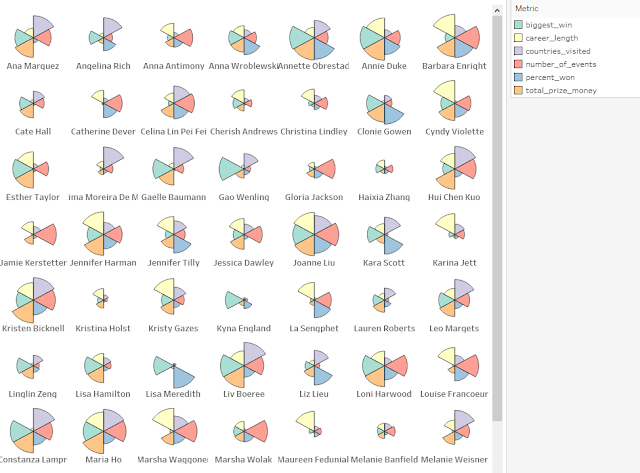
Solution by Tom Prowse and you can download the workflow here. Also, Will has provided the solution in R which can be downloaded here . The challenge this week was a cross-over with the new community project  #GamesNightViz  and #PreppinData regular Will Sutton . The challenge was to recreate a Pizza chart all about the top female poker players across the world.  Step 1 - Combine Players & Events The first step is bring both of the tables in our input into the workflow. From here we can then use a join to combine them together.  The join condition is where player_id = player_id:  We can then tidy up the table be replacing any nulls in the 'prize_usd' field with a 0 and also calculating the number of wins for each player using: Wins   IF [player_place]='1st' THEN 1 ELSE 0 END Then finally we want to know how many events each player attended so we can calculate this using a FixedLOD calculation, where we group by 'player_id' and then CountD 'Event Name...

2021: Week 47 - Games Night Viz Collab

Image
 Challenge By: Will Sutton Did you see the launch of #GamesNightViz a couple of weeks ago? It's a new community project which gives you the opportunity to practise your data visualisation, design and preparation skills. So we've decided to team up this week to bring you a #GamesNightViz style Preppin' challenge!  This week's challenge is about building new dimensions from #GamesNightViz's Top Female Poker Players data to better understand their successes across their poker careers. They've earned millions of dollars but was it all in one go? How many years have they been playing poker? How regularly do they win?  The resulting dataset will allow you to build a pizza plot/coxcomb chart like below, which you're welcome to do as a bonus challenge too! Inputs Top 100 Female Poker Players  Top 100 Poker Events  Requirements Input the Data Add the player names to their poker events Create a column to count when the player finished 1st in an event Replace any nul...

2021: Week 46 - Solution

Image
Solution by Tom Prowse and you can download the full workflow here .  This week we turned our focus onto the Tableau Desktop relationship model and how we can build the physical layer of the data model using various aggregated and conditional joins. We are using the classic example of the Bookshop so let's look how we can solve the challenge! Step 1 - Sales Data The first step is to bring all of the sales data into the workflow. This is split into 4 separate sheets (1 for each quarter) therefore we can use a 'Wildcard Union', within the input step, to bring all 4 sheets in together.  To make sure we are bringing in the correct sheets, we can use the matching pattern of 'Sales Q*' to make sure we are bring in the 4 different sales sheets.  From here we can then remove the File Path & Table Names fields that have been auto generated after the union. At this stage we should have 56,350 rows, and this number should be replicated throughout the challenge. Step 2 - Jo...

2021: Week 46 Book Shop Data Modelling

Image
 Challenge by: Carl Allchin      For any Tableau Desktop users, the relationship model being introduced in 2020.2 created a very different way of working with data. The aim of the new functionality was to remove the complexity of having to think about tying multiple data sets together. If you've worked with multiple data sets before, I'm sure you've stumbled across a time where the number of rows in your resulting data set formed by your joins has exploded to a large number from what you initially had.  Relationships makes use of: Smart Aggregations - avoid duplication of values that come from a join condition that links one row to many rows in the other data source Conditional Joins - uses different types of joins depending on what the model assess that you are trying to do within your visualisation.  This flexibility comes from Tableau creating a 'logical data model' that it then flexes. If you've created Joins and Unions before then you will have built a...